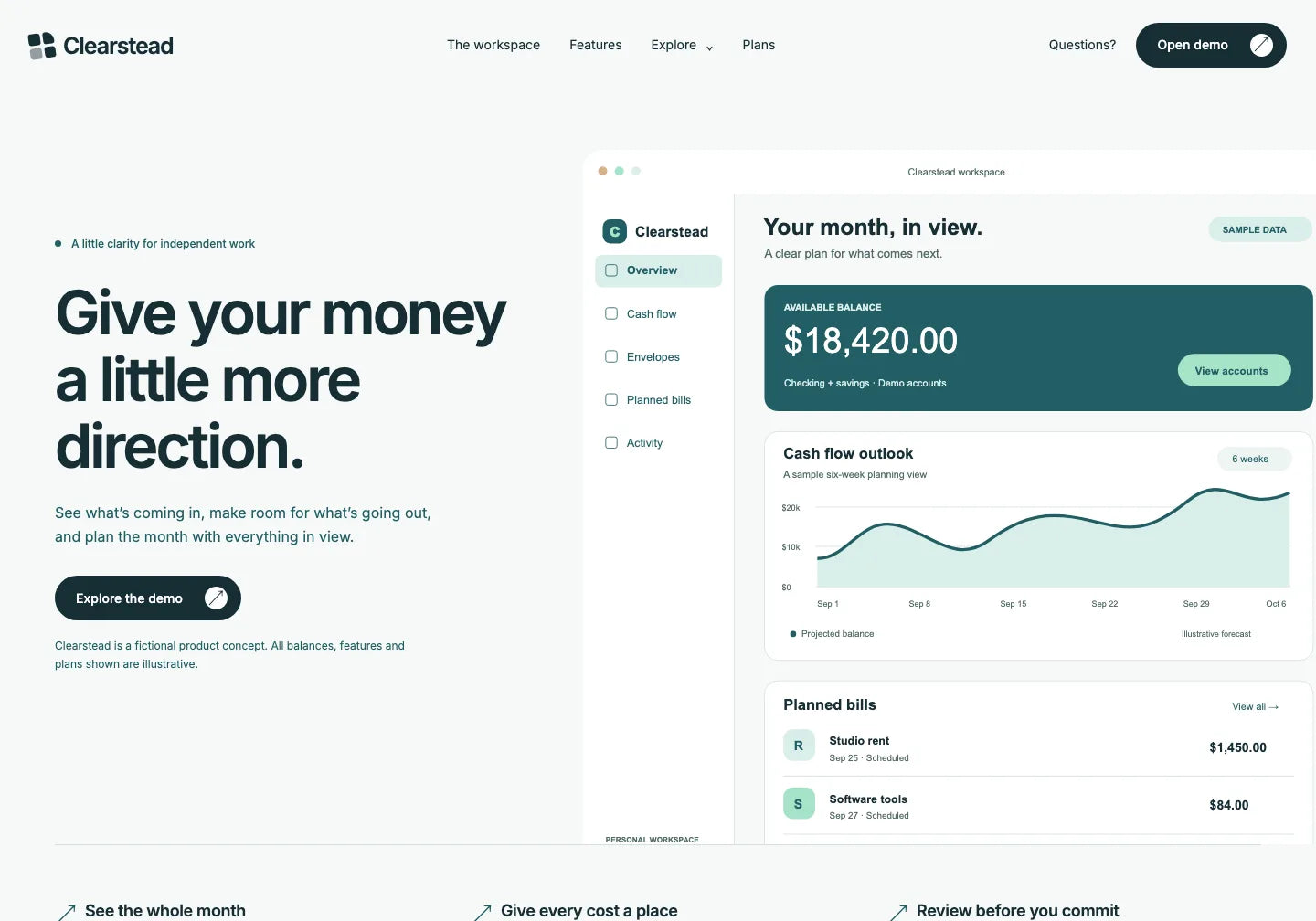
Clearstead / a layout with a dashboard
A light product page with a large interface illustration. In the example, we change its opening and illustration, then the arrangement of the heading and dashboard.
Choose this template

Download your chosen project with editable HTML and RECREATE.md. AI gets an existing website and instructions for its design. You request specific changes, check the preview and continue working on the saved files.
Full request to copy
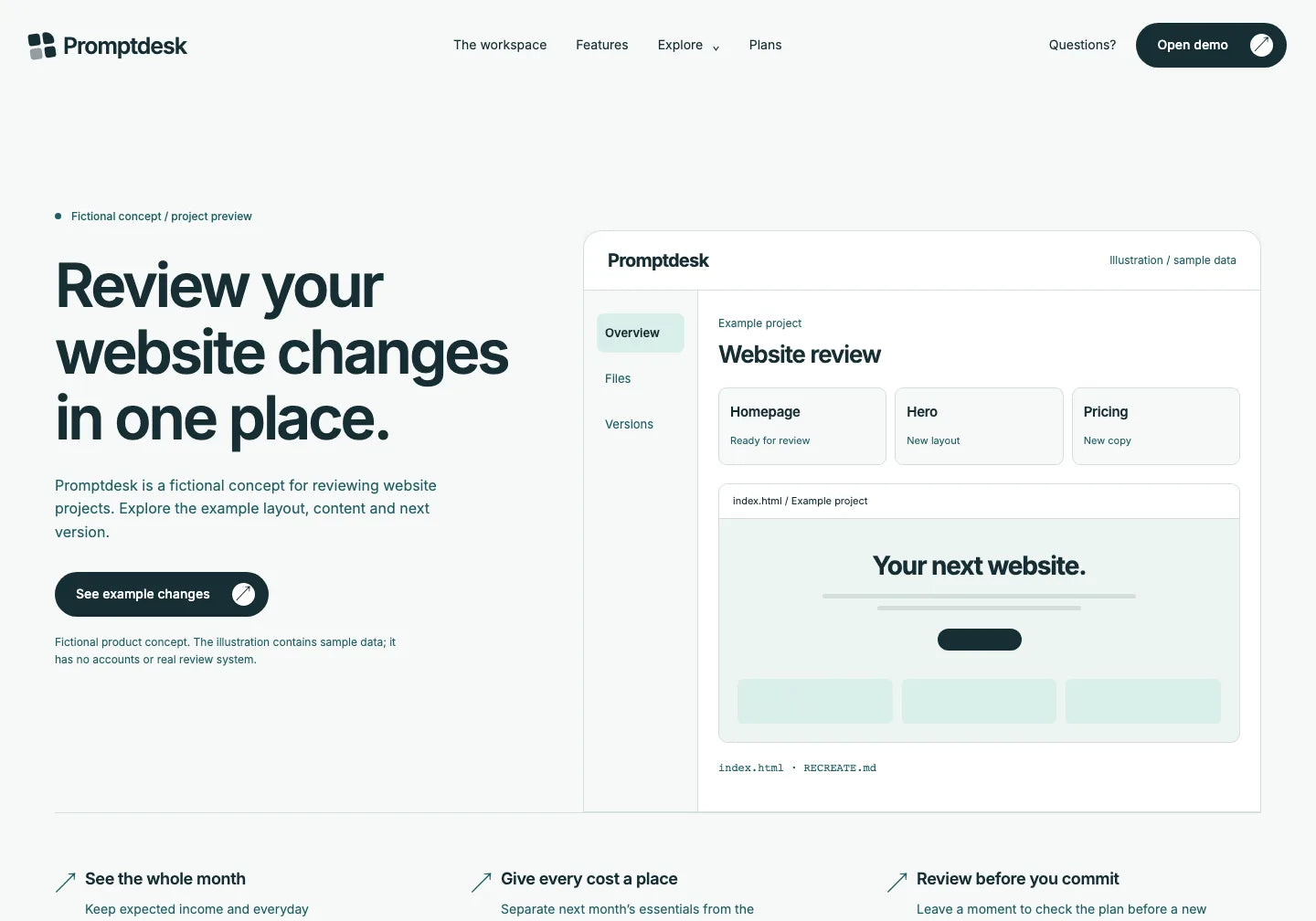
The original Clearstead and a prepared opening for fictional Promptdesk. The top-bar name, hero copy and dashboard illustration have changed. The lower sections and colours come from Clearstead. The dashboard is a static illustration with sample data, not a working application.
Open the whole extracted folder in your AI tool. Share the HTML, RECREATE.md and supplied assets.
Choose a website you can already preview. Its HTML and instructions give AI a specific project to edit and give you a reference for checking changes.
Below is an actual excerpt from the instructions supplied with Clearstead. This file describes the source project’s structure, design and behaviour. Give it to your agent with the HTML and assets to work on your chosen website.
Check the package contents on your chosen template’s product page. Keep a copy of the source files before editing.
Produce one `index.html`, containing all page markup, an inline stylesheet and one inline vanilla-JavaScript IIFE placed after the dialog. Use English. No framework, package manager, build step, bundler, external JavaScript, backend or persisted state.The original package instructions are in English. This is an excerpt, not the full file.
Return to the current file. Set the scope of the next edit and say which elements should stay. Each preview shows whether AI followed your request.
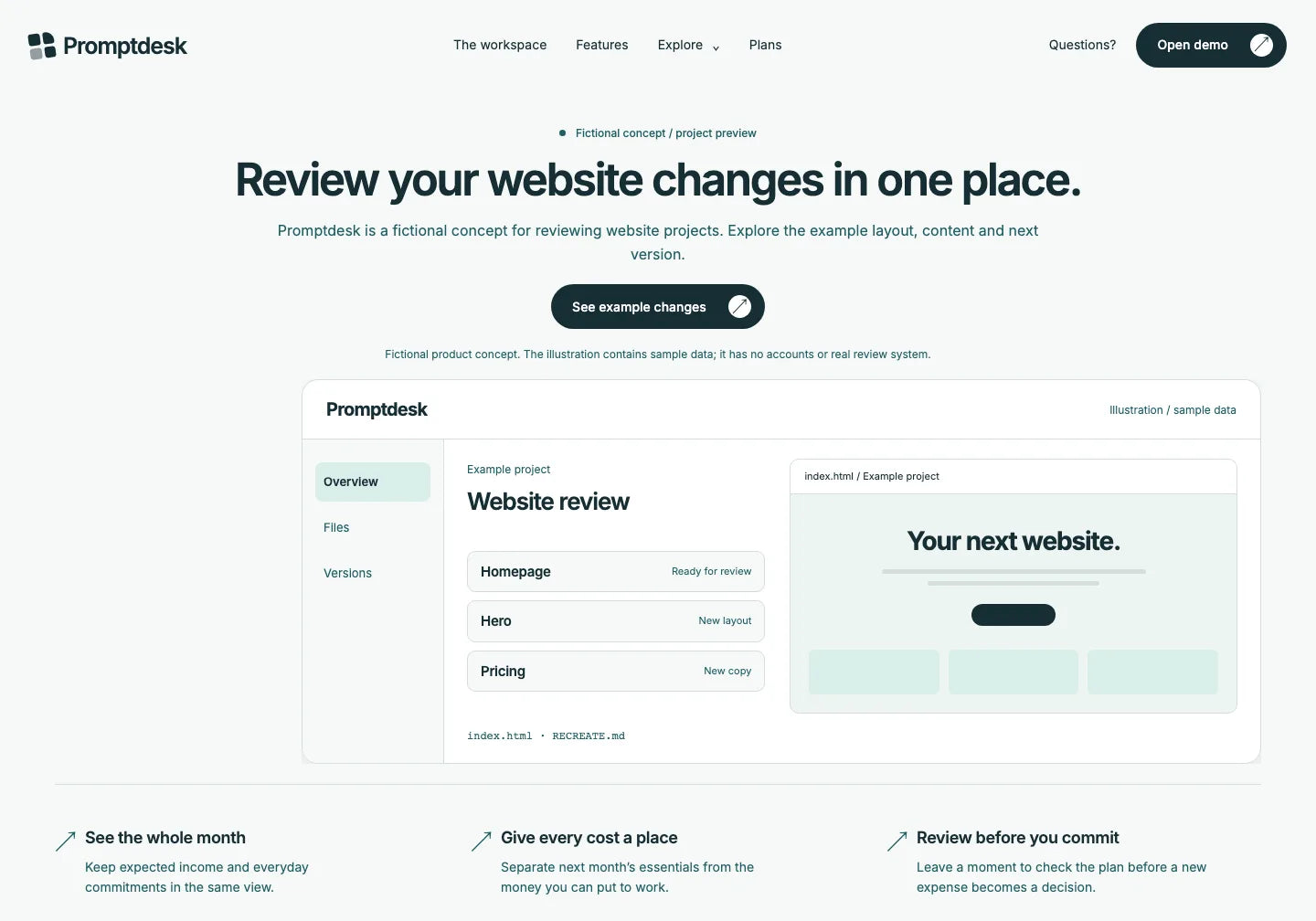
Compare three different designs. Start with a layout that fits your website and ask AI to make changes to its files.
A light product page with a large interface illustration. In the example, we change its opening and illustration, then the arrangement of the heading and dashboard.
Choose this template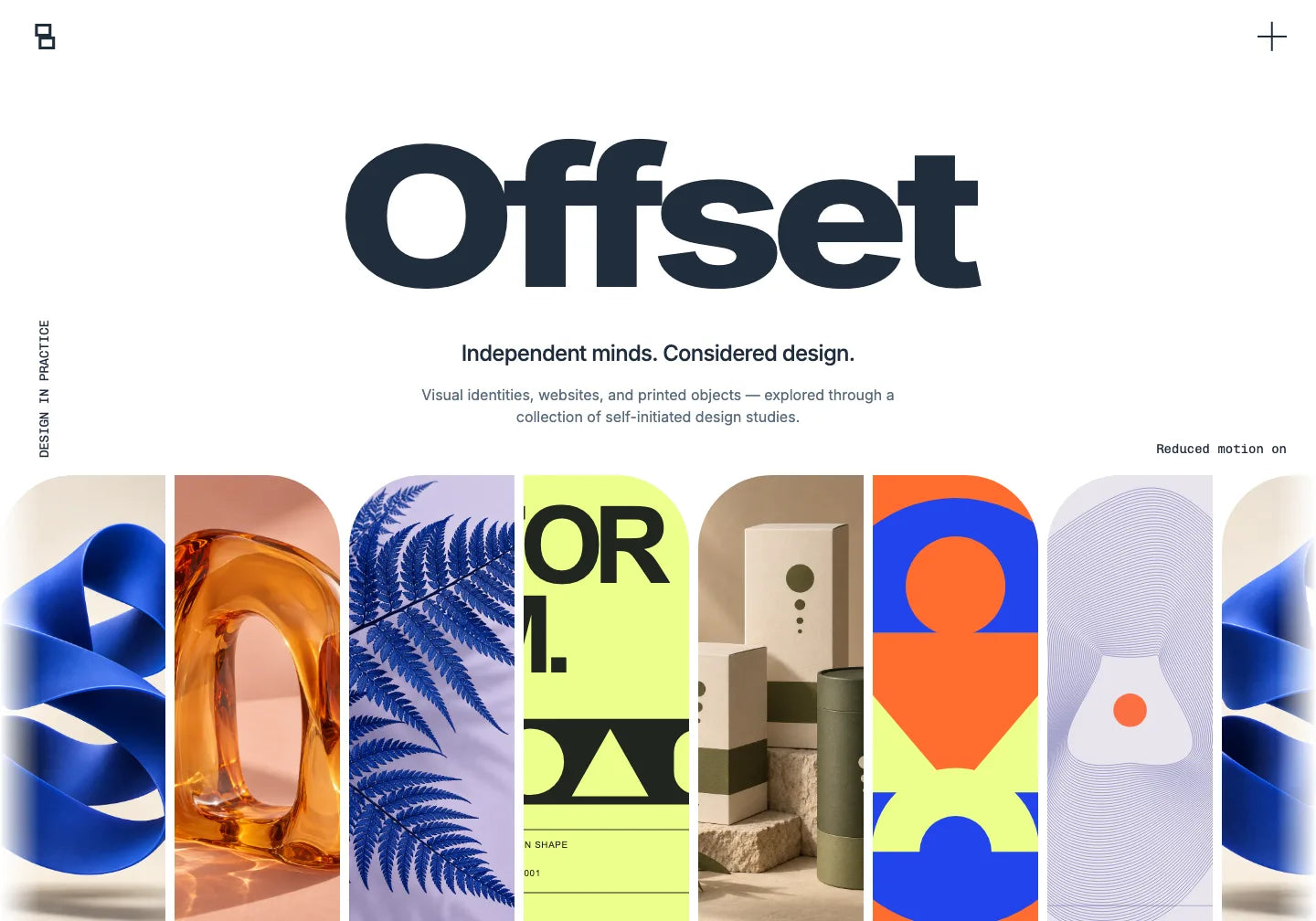
Large typography, images and project sections. Choose this layout if you want to develop a website featuring your own work.
Choose this template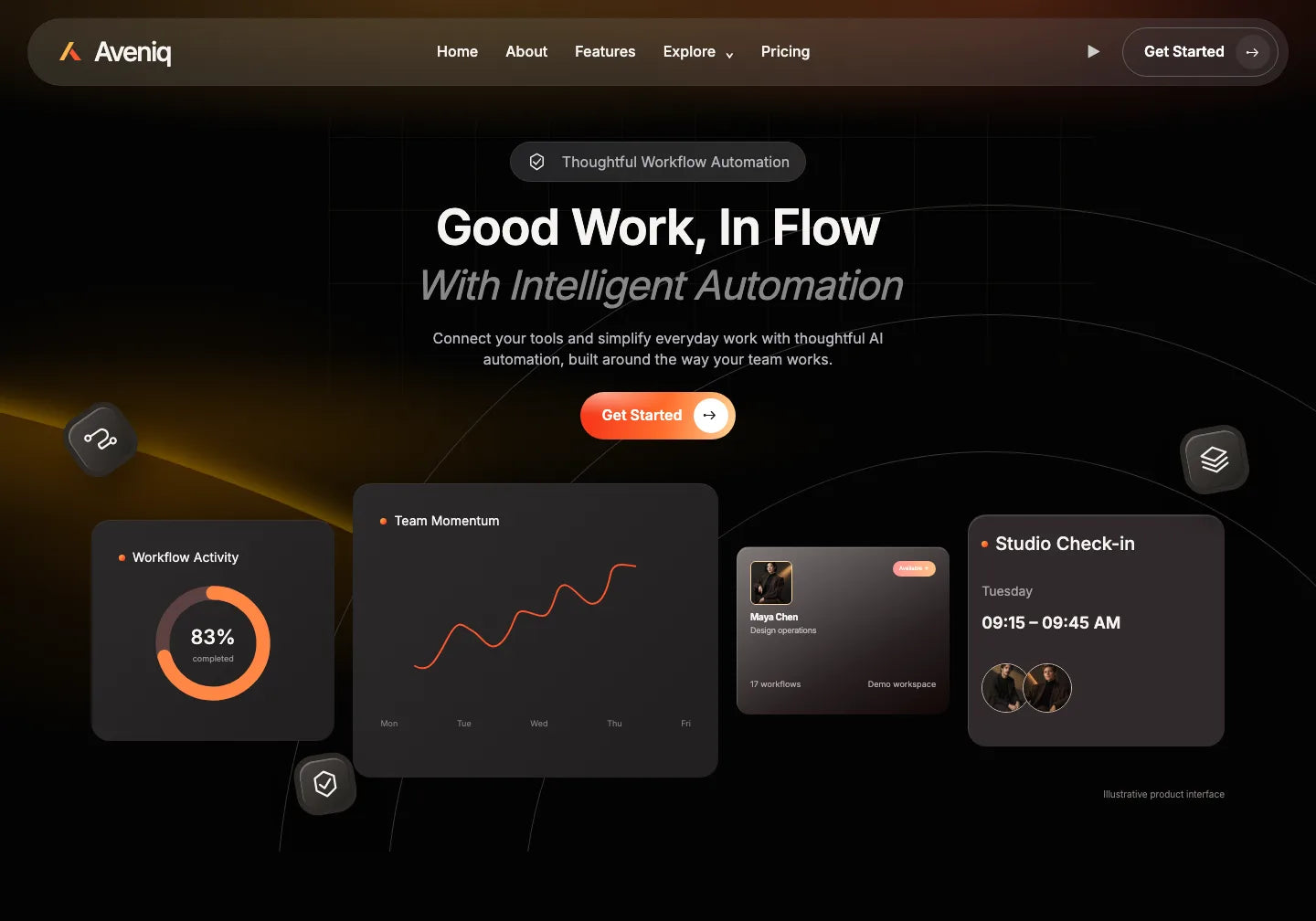
A dark layout with dashboard illustrations and orange accents. Start with this design if it fits your idea. The features shown are a fictional concept.
Choose this templateKeep the current website folder. In your next session or another agent, share those files and describe the next change. The project and instructions remain your reference.
Open the full preview. Check the layout, content and page behaviour. Choose a project that fits what you want to build.
Extract the ZIP. Give your AI tool the HTML, RECREATE.md and supplied assets. The instructions describe the design; the HTML shows its existing version.
Say what should change and what you want to keep. Ask for the file to be saved, open the preview and compare it with your chosen design.
Download the project, open it in your AI tool and request one change. Check the preview and saved file before buying your chosen template.
THE TEMPLATE LIBRARY
Preview a ready-made layout. Open the files in your AI tool and keep developing your chosen design with further changes.
82 website templates
CHOOSE YOUR ACCESS
Choose one design to develop further or get PRO access when you want more layouts and creative assets.
Your chosen design and files to work on in your AI.
$29.00 USD/ template
The full PRO library for future projects while your subscription is active.
$149.99 USD/ year
Access to the PRO library for future projects with one payment.
Previous price$599.00 USD
$199.00 USD/ once
Commercial Use pricing. Prices and taxes are confirmed at checkout. Your AI tool, domain and hosting are separate.
You buy the files for your chosen template with an existing website design. The projects shown include editable HTML and RECREATE.md with detailed instructions for recreating the project. Check the supplied assets on the product page. Downloading files does not publish a website or connect services.
You can share the project with an agent that reads, edits and saves files. In Claude Code, Codex, Cursor or Gemini CLI, work with the extracted folder according to the tool’s instructions. Check its available features and your plan. OneDollarStock supplies the project; you choose and pay for your AI tool separately.
Share index.html, RECREATE.md and supplied assets with AI separately. RECREATE.md contains detailed instructions for the project’s design. The button copies the full editing request; the conversation beside the preview shows a summary. Both describe edits to the existing website.
Work with the current file and define the scope: what to change and what to keep. Ask for the edit to be saved, open the preview and compare it with the previous version. Check links and the view on a phone too. A form or button in a template may show a sample state; real messages, payments or bookings need separate implementation.
Keep the current project folder with its HTML, instructions and assets. Share it with the next tool that works with files and describe the next change. Moving the project does not move the history of your previous conversation. Before continuing, ask the new agent to read the files and check its first edit.
The HTML and instructions are in your chosen template’s package. Start with a design you want to change and keep successive versions.
See how to work on a ready-made project in Claude Code, Codex, Cursor or Gemini CLI, and what to share with AI before editing.
Keep the HTML and develop your project after changing tools.
Start your agent with a ready-made website and its files.
Choose a design to edit in Claude Code.
Find a ready-made project to edit in Codex.
Choose a design and files to work on in Cursor.
Start with a project Gemini can edit.
Go from template files to your own website version.
Describe specific changes to your chosen template.
Ask the agent to edit an existing website.
Share your project with Gemini and request the edit you need.
Choose a design you can already preview.
See which files give AI context for your chosen project.

OneDollarStock is implementing a project to prepare the platform for entry into the German market under the “Go Global” acceleration track of the “Unicorn Hub Startup Booster” programme, project no. FENG.02.28-IP.02-0013/23. The project is co-financed by the European Funds for Smart Economy 2021–2027 under the priority “Innovation-friendly environment”, Measure FENG.2.28 Startup Booster Poland. Learn more about the project →


